"How do I view and print club mailing labels? "
How do I view and print club mailing labels?
ClubRunner can access the address information in your member directory to output a PDF document suitable for printing on standard Avery labels. This makes addressing club correspondence faster.
- To access the mailing label feature, you must first go to your club homepage and log in. Then, click on Member Area on the top right, under your club banner.

2. Along the top of the screen you will see several tabs. Click on the Admin tab, and then on the Admin feature below it.

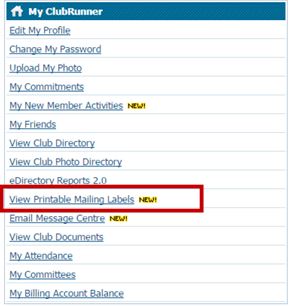
3. Now, select View Printable Mailing Labels under the My ClubRunner heading on the screen.
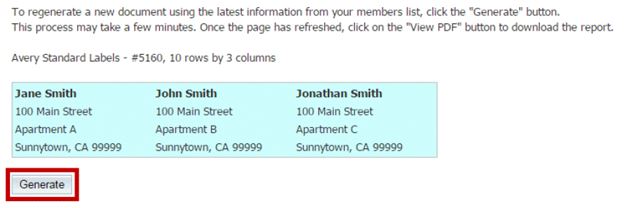
4. You are now on the Printable Mailing Labels screen. To generate a PDF of the most recent member addresses, click on the button marked Generate.
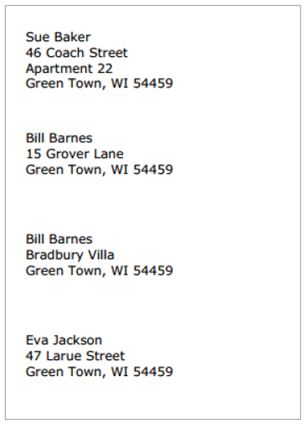
5. To view the newly generated mailing label directory, click View PDF. This will give you the option to download the generated file, or view it in your browser.
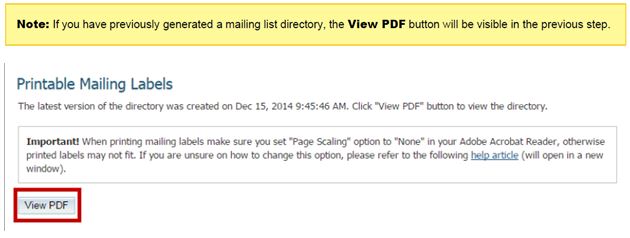
6. When printing mailing labels make sure you set "Page Scaling" option to "None" in your Adobe Acrobat Reader, otherwise printed labels may not fit. If you are unsure on how to change this option, please refer to the following help article (will open in a new window).

Interested in being a sponsor?
Download the website sponsorship guide
Download the website sponsorship guide