Glenn Campbell and Rod Delisle presented a visual presentation on how to use ClubRunner basics. Rod advised that we as a club have been using ClubRunner for about 15 years now. This is the primary Web presence for the Charleswood Rotary Club.
The club Main Page has links to the club Facebook, Instagram and Youtube pages. Also links to our District, Zone, Rotary International, ShelterBox Canada and IRCOM House.
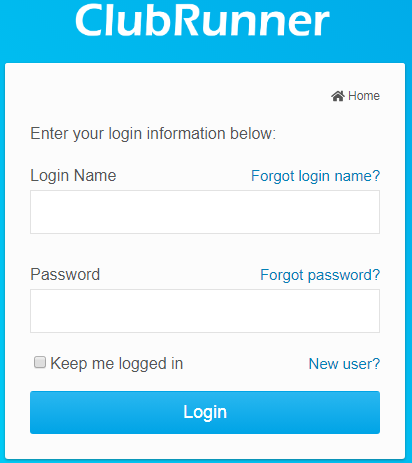
The real power to ClubRunner is the beyond the
Member Login. You must click
Member Login- then enter your
name and password, click
submit. If not already, click on the “Admin” tab, the print is
blue, and sections that you are not authorized to use are
greyed out.
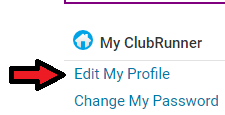
You can click under
My ClubRunner -
Edit My Profile to Add a Photo, Change Email | Keep this information up to date as this is how R.I. keeps up to date. Inside this section if you click on
Rotary you can see your Rotary Member #,
Biography (you can select either
Private or
Public for this information). Click the
Settings area and you can change your password.
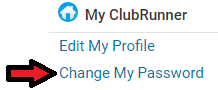
You can also change your password by being on the
Admin/Admin page, then look under the
My ClubRunner list – click
Change My Password. This will take you directly to the
Member Profile |
Settings |
System Login – click
Change Password to the right side of page.
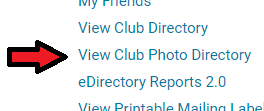
To see club member photos,
Admin/Admin then find the
My ClubRunner column, then click
View Club Photo Directory. This will show new members photos of the club members; to assist them learning to put a name to a face.
 Admin/Admin
 then
ClubRunner column then click
My Friends. This is where you can place a prospective member or friend
First and
Last name as well as their
Email address. Then the Club Bulletin will be sent to them, with your name as the friend who sent it. This can generate interest in the club and membership. Please get their consent first!
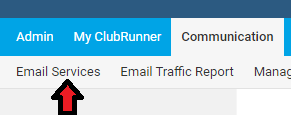 Communication
 then click
Email Services. A new window opens to allow sending emails to Rotarians listed in the Charleswood club member list. The club member list must remain up to date for these emails to reach the intended Rotarians. Next step to send an email is to click
+ Compose New Message. Then follow the
Steps 1 thru
5. In
Step 1 you can select all club members or create a Custom List. Just click the ‘
+’ and check the box next to the individuals that you wish to send the email to. When you have completed the email, you can test how it will look when sent by selecting to first send only to yourself by clicking
Send to Myself in
Step 5. When satisfied with the email composition, click
Send.
Glenn Campbell then continued the presentation. He stated that he is pleased to be involved in two committees for the coming year. First would be the club web page where he will be working with Rod to keep the page current and informative for club members as well as the visiting public. The second position that he accepted is to continue with the Youth Services committee, working with Iain Scott.
While discussing files that Nancy Morris found in her possession, Glenn and Nancy came to the same conclusion. They thought that it would be more efficient to use a dedicated location within ClubRunner to store and retrieve club documents.

Select
My ClubRunner in the first horizontal line of options. Then click
Documents (or “View Club Documents” on the Admin page). The list of available documents will appear in a column.
You may now open and read documents depending on your level of access. To open a file, click on the document title. Then, depending on your browser, a popup window may open, select Open or Save. Access to this area requires you to Login, it is a private area, not open to the public.
There is an option to select Volunteers along the top horizontal core sections. In this section you can click on View Signup Lists, then a new page will open to view projects available to volunteer for, or click on +Create New Signup List. New page opens and follow the input boxes. There are Email Templates available to use as well.
Communicate with Glenn or Rod when you have club documents to store, or photos for the Main Club Web page.
There is a module available for more options, also an Online Payment system. The problem with the payment system is that a % of donations is taken.

For more information, check out the videos on the ClubRunner Youtube Channel:
Q/A
Greg Fraser asked if you could word search in ClubRunner.
A.- Glenn stated the public website has an effective search function. Since the Bulletins are archived, the search results are often found in a Bulletin. Searching documents saved on the Admin side of ClubRunner is possible. There is a search box on the Documents page. However, it only searches file names not content.
President Mandy asked if you could store photos in ClubRunner.
A.-Rod advised that there is a whole other section that has that capability. However, there are other more effective photo hosting sites. A Link could be used.
Ed Thompson asked if this photo section is within ClubRunner.
A.-Rod advised the photo section is inside ClubRunner. The amount of space allowed is determined by the club size.
President Mandy expressed that this entire presentation was such a great way to train our members!
Glenn Campbell made a challenge to those that have not updated their
Profile in some time. Upload a photo of yourself to your
Profile page inside ClubRunner, before our next meeting.